Employee Time Off Requests
The Employee Time Off Requests Widget shows a list of all pending Time Off Requests for your Employees.
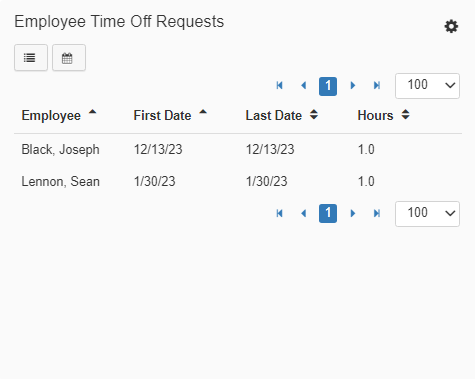
Navigating the Widget
-
Navigation Arrows
Click from page to page using the navigation arrows. -
Pagination Row Selector
Increase how many Time-Off Requests are listed by changing the number from '25, 50, 100, 250, 500, 750, 1000, 100000' in the drop-down menu. -
List View
Select list view to be redirected to the full list view of the requests. -
Calendar View
Select calendar view to be redirected to the calendar view of the requests. -
Scrollbar
Use the scrollbar to scroll through the list of Employee names. -
Open Time Off Request
Click on an Employee’s name to be redirected to their 'Time Off Request' to provide quick access to approve or deny the request. -
Multi-column Sorting
The Employee Time Off Request widget allows for you to sort by more than one column, in the list of Time Off Requests, simultaniously.Primary Column
The Primary Column should always be the 'Employee' name. First, click the 'Employee' column header to sort the list of Employee names in ascending or descending order.Secondary Column
Next, hold down the 'CTRL' key while clicking on the secondary column header. You can select either 'First Date', 'Last Date', or 'Hours'.
Note: Multi-column sorting is limited to a selection of two columns simultaneously.
-
Settings

Access the settings to change the title or to adjust the attributes of the Widget.